EN
EN
The Italian tax return portal is run by the Agenzia delle Entrate. The latest official information about accessing the pre-filled return is available on the Agenzia delle Entrate website, including its page on accessing the pre-filled tax return with SPID.
This article walks through the practical steps for entering the crypto forms you prepared with Divly into the Italian pre-filled tax return system.
Step 1: Prepare your Divly forms
Before logging in to the Agenzia delle Entrate portal, make sure you have the correct crypto tax outputs from Divly:
- If you will file with Redditi PF, prepare the information for Quadro RW and Quadro RT.
- If you will file with Modello 730, prepare the information for Quadro W and Quadro T.
Keep those documents open while you work through the pre-filled return. The values should be copied into the matching sections of the Italian form.
Fill in one section, save it, then move to the next section. This is especially useful if you need to enter both foreign asset monitoring information and capital gains information.
Step 2: Go to the Agenzia delle Entrate pre-filled tax return
Go to the Agenzia delle Entrate pre-filled tax return application. The main login page for the application is the dichiarazione precompilata login page.
The Agenzia delle Entrate website supports several login methods. This guide covers the most common options: SPID, CIE, and CNS. Other credential options may also be available directly on the Agenzia delle Entrate website.
Access with SPID
If you already have a SPID digital identity, use the pre-filled tax return login page and sign in with the credentials from your SPID provider.
Access with CIE
You can access the pre-filled tax return with Carta di identità elettronica 3.0 (CIE) from the pre-filled tax return login page .
To use CIE, you generally need:
- a valid CIE and the related PIN and PUK codes;
- a device that can read the CIE, such as a computer with an RFID reader or an Android smartphone with NFC;
- the relevant CIE software on your computer, or the CieID app on your smartphone.
After setup, place or move the CIE near the RFID reader or smartphone, then select Entra con CIE. The Ministry of the Interior provides more information about using Entra con CIE .
Access with CNS
You can access the pre-filled tax return with a Carta nazionale dei servizi (CNS) from the pre-filled tax return login page .
Insert the CNS smart card into the computer reader before continuing. When you finish, use logout, close the browser sessions used for the online service, and remove the CNS from the reader.
Step 3: Open your pre-filled return
After logging in, you will arrive at the home area for the dichiarazione precompilata. For the 2026 pre-filled return, the information provided in the portal says that 730/2026 can be accessed for viewing from 30 April, while the pre-filled Redditi persone fisiche model can be accessed from 20 May, when it can also be edited.
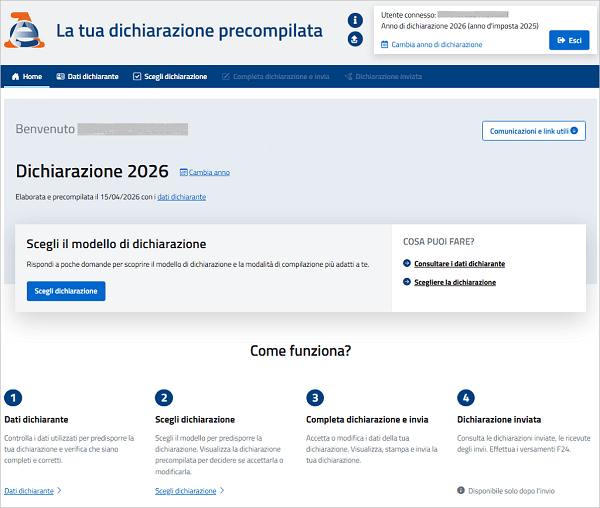
If this is your first time entering the application, you may first see the generic homepage until you choose which tax return model you want to use. If you have already chosen a model, you will see the homepage for that selected pre-filled return.
The website also lets you consult previous pre-filled returns for earlier years, where available. Use Cambia anno if you need to select a different tax year through the Cambia anno di dichiarazione function.
Pre-filled return access dates mentioned in the portal
730/2026 is available for viewing from 30 April. Redditi persone fisiche is available from 20 May, when editing can begin.
Step 4: Choose the correct declaration model
At the top of the portal, select Scegli dichiarazione. You will then choose between Modello 730 and Redditi PF.
Choose the model that matches the forms you prepared:
Use Quadro RW and Quadro RT
Choose Redditi PF if you need to enter the Quadro RW and Quadro RT information prepared in Divly.
Use Quadro W and Quadro T
Choose Modello 730 if you need to enter the Quadro W and Quadro T information prepared in Divly.
To continue, tick Ho preso visione, then select Procedi.
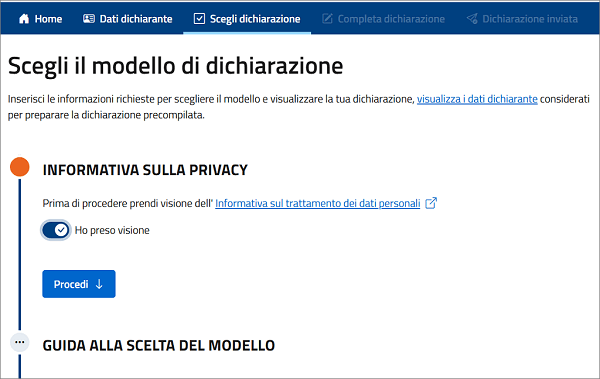
You should then reach the Completa dichiarazione e invia area for the declaration model you selected. You can also open the Agenzia delle Entrate page for Completa dichiarazione e invia.
Step 5A: If you chose Redditi PF
In Redditi PF, use the left sidebar to select Quadro RW. Enter the information from the Quadro RW document prepared by Divly, then save the form. After that, do the same for Quadro RT.

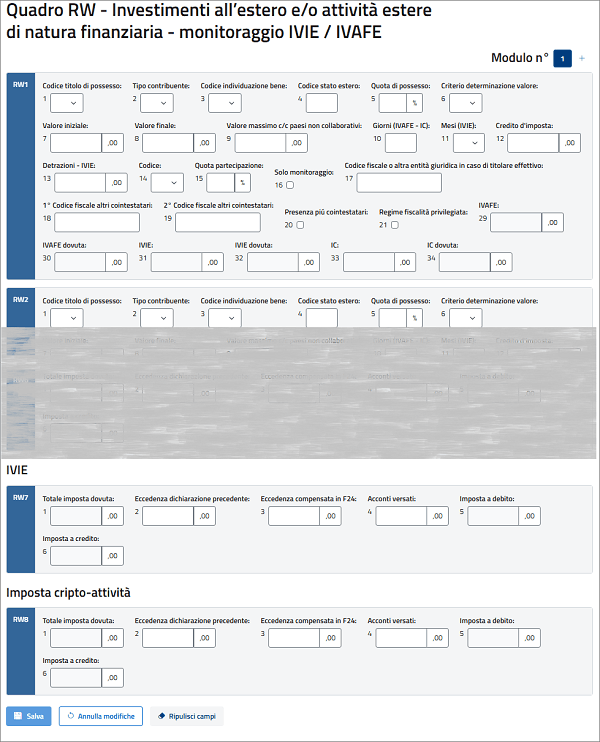
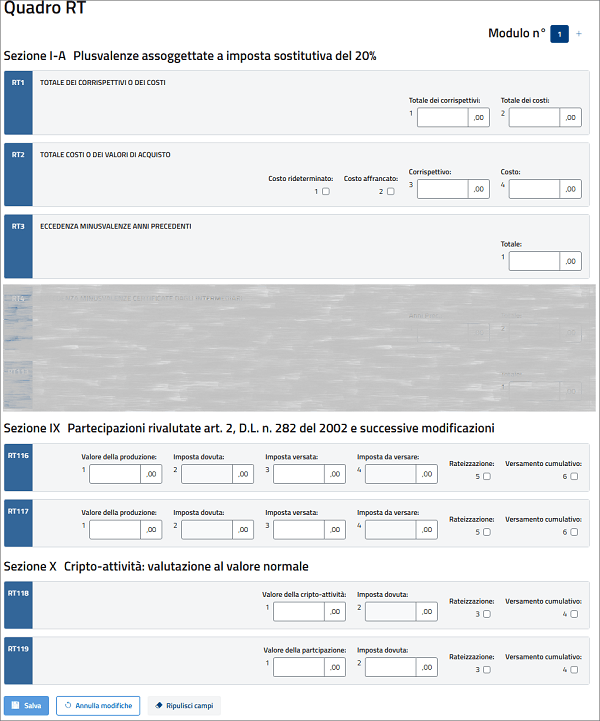
If the space available in the form is not enough for all the data you need to enter, select Aggiungi modulo in the upper-right corner to complete additional modules.
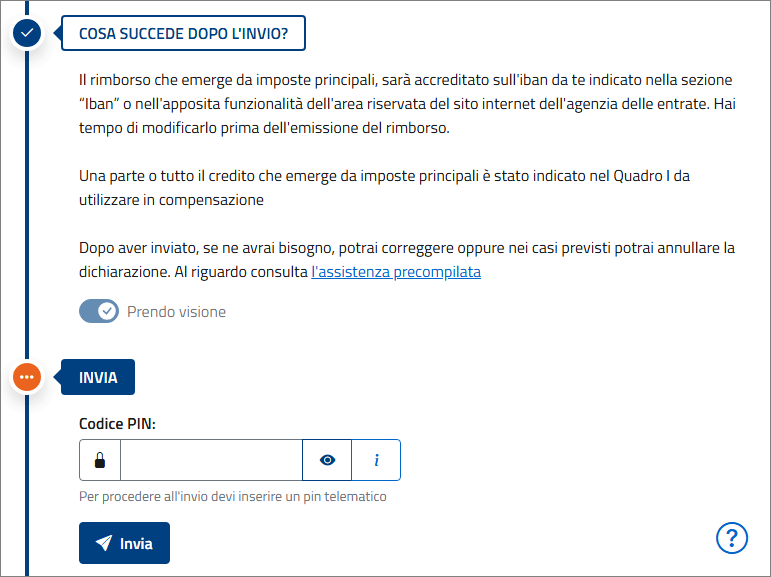
When you have finished editing Quadro RW and Quadro RT, select Calcola, stampa e Invia in the left sidebar. Use that page to review the calculations before submitting. After following the steps shown on the page, submit by selecting Invia.
You may see an option to enter a PIN. If you logged in with SPID, CIE, or CNS, the PIN is not needed.
Step 5B: If you chose Modello 730
In Modello 730, select W - investimenti all'estero and enter the information from the Quadro W document prepared by Divly. Then select T - plusvalenze and enter the information from the Quadro T document.
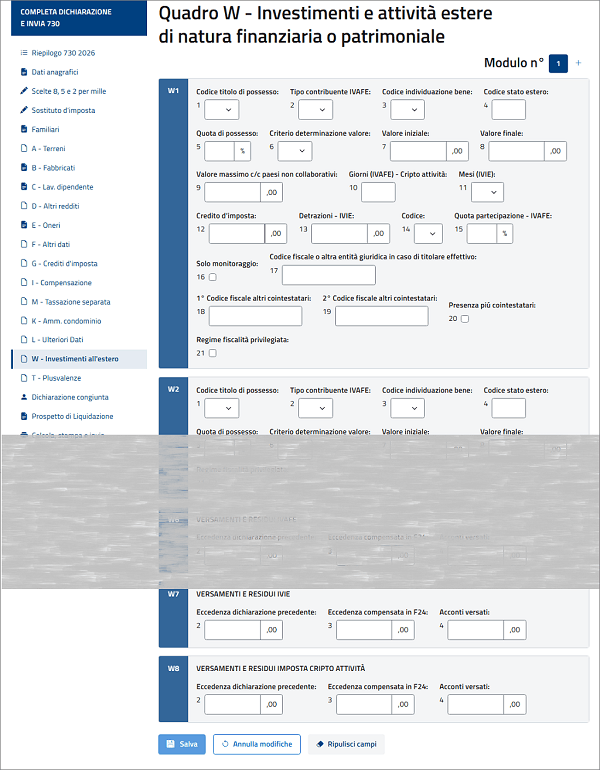
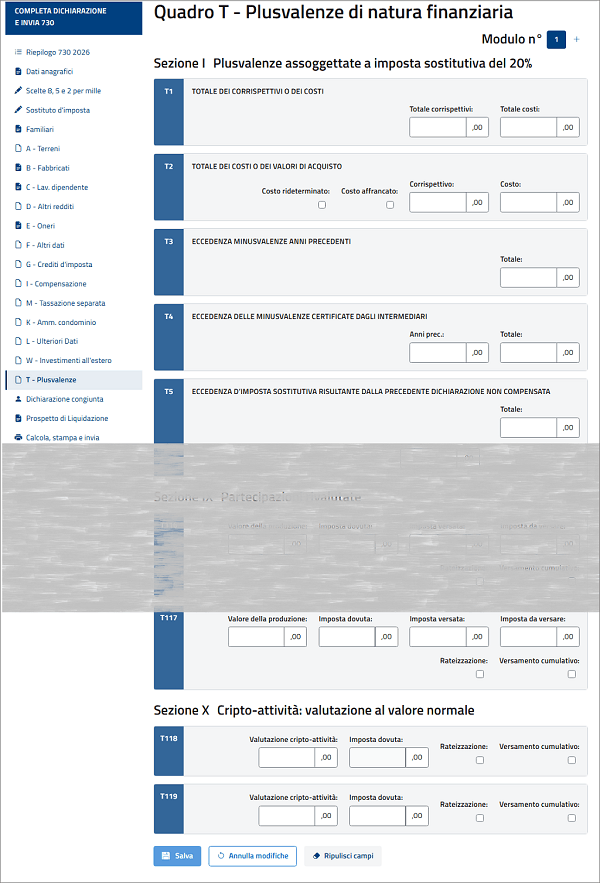
If the space available in the form is not enough for all the data you need to enter, select Aggiungi modulo in the upper-right corner to complete additional modules.
When you have finished editing Quadro W and Quadro T, select Calcola, stampa e Invia in the left sidebar. Use that page to review the calculations before submitting. After following the steps shown on the page, submit by selecting Invia.
You may see an option to enter a PIN. If you logged in with SPID, CIE, or CNS, the PIN is not needed.